 Soyeb Akhtar
This guide covers the 8 best handwritten notes apps for Android in 2026 — tested and reviewed for Indian students. Whether you want a completely free option, stylus-ready writing experience, or handwriting-to-text conversion, there’s an app here that fits your study style. Our top picks: Microsoft OneNote (best overall free), Squid (best pure handwriting feel), and Nebo (best for ink-to-text). Read on for the full breakdown.
Let’s be honest — typing notes on a small phone keyboard is a mess. Autocorrect jumbles your chemistry equations. Bullets never line up. And somehow your Physics formulas end up looking like a ransom note.
That’s why more students are switching to a handwritten notes app on their Android device. You write naturally with your finger or a stylus, your notes look clean, and everything stays organised digitally. No torn pages, no lost registers, no “bhai mera notebook kahan gaya” panic at midnight.
The problem? There are dozens of apps out there, and most roundups are written for iPad users or American college students. This guide is for you — the Indian student on an Android phone or mid-range tablet who wants a real, practical recommendation.
We looked at competitor articles ranking on Google and tested each app against what actually matters: free availability, Android performance, stylus or finger support, cloud sync, and how useful it is during actual exam preparation. Here’s what we found.
1. Why Handwritten Notes Still Matter in 2026
You might be wondering: why bother with handwriting at all when you can just type? Fair question. But the research here is pretty clear.
A widely cited study from Princeton University and UCLA found that students who wrote notes by hand retained concepts better than those who typed — because handwriting forces you to paraphrase and process information, rather than just transcribing it word for word.
Now here’s the thing: a good digital handwritten notes app gives you the best of both worlds. You still write by hand (so your brain stays engaged), but you also get:
- 🔍 Searchable notes — find any topic in seconds
- ☁️ Cloud backup — never lose a page before exams
- 📤 Easy sharing — send notes to classmates as PDF
- 🗂️ Better organisation — subject-wise notebooks, tags, folders
- ✏️ Infinite pages — no running out of space mid-topic
For Indian students juggling multiple subjects, entrance prep, and college assignments all at once, a digital handwritten notes app is genuinely one of the most practical tools you can use. If you haven’t explored this space yet, also check out our guide on the 10 best free note-taking apps for students for a broader look at the category.
2. What to Look for in a Handwritten Notes App

Before we jump into the list, here’s the quick checklist you should use when evaluating any handwritten notes app:
- Input method: Does it support finger writing? Stylus? Both?
- Handwriting smoothness: Does ink lag, or does it feel natural?
- Ink-to-text conversion: Can it turn your scrawl into editable text?
- Offline support: Does it work without internet? (Critical for low-connectivity areas)
- Cloud sync: Does it back up to Google Drive, OneDrive, etc.?
- Free tier quality: How much is locked behind a paywall?
- Performance on mid-range phones: Does it lag on a Redmi or Realme device?
- PDF support: Can you annotate textbook PDFs directly?
Keep these points in mind as you read through the apps below. Every student has different needs — the “best” app is the one that fits your specific workflow.
3. The 8 Best Handwritten Notes Apps for Android (2026)
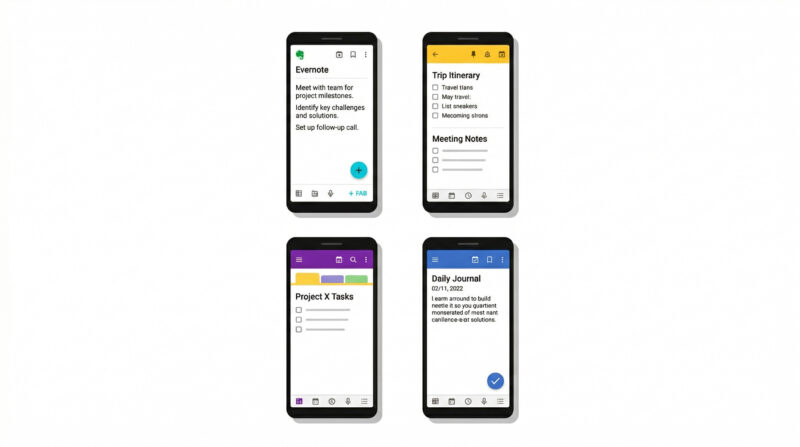
1. Microsoft OneNote — Best Overall Free Handwritten Notes App
🏆 Editor’s Pick
If you only try one handwritten notes app this year, make it OneNote. It’s completely free, works on Android, Windows, iOS, and even the web — so your notes travel with you across every device.
What makes it exceptional for handwritten use is the “Ink to Text” feature. Write with your finger or stylus, then convert your handwriting to typed text. It also supports pressure sensitivity for S Pen users, and you can mix typed text, handwriting, images, and audio recordings on the same infinite canvas.
For Indian students managing multiple subjects, OneNote’s notebook → section → page structure maps perfectly to how we organise registers in college. Create one notebook per subject, one section per chapter, and you’ll never lose a note again.
✅ Pros
- Completely free, no storage limits
- Works across all platforms
- Ink-to-text conversion
- Flexible canvas for diagrams + notes
- Offline mode available
❌ Cons
- App is slightly heavy; slower on low-RAM phones
- Ink-to-text works better on Windows than Android
- Interface can feel busy at first
2. Squid — Best for Pure Handwriting Feel on Android
✍️ Natural Writing
Squid (formerly known as Papyrus) is built exclusively for Android. That matters — because it means every feature, every gesture, and every optimisation is designed with Android in mind, not ported from an iPad app.
The writing experience here is genuinely the closest thing to actual pen-on-paper you’ll find on an Android phone. Its vector-based rendering means your notes stay sharp no matter how much you zoom in — perfect for science diagrams and maths equations that need precision.
On the free plan you get unlimited notebooks, handwriting support, basic paper templates, and Google Drive export. The premium plan (reasonable for Indian pricing) unlocks PDF import + annotation, custom paper styles, and advanced export options.
✅ Pros
- Best-in-class writing smoothness on Android
- PDF markup and form filling
- Zoom-to-write for precise notes
- Vector rendering = no quality loss on zoom
❌ Cons
- Android-only; can’t access on laptop browser
- No handwriting-to-text conversion
- PDF features require premium
3. Samsung Notes — Best for Samsung Phone/Tablet Users
📱 Samsung Exclusive
If you’re on a Samsung device — especially one with the S Pen like the Galaxy S24 Ultra, Note series, or a Samsung Tab — Samsung Notes is hands-down the best handwritten notes app available to you. It’s pre-installed, deeply optimised for S Pen input, and genuinely powerful.
Features include handwriting-to-text conversion, shapes recognition, multi-window support, PDF annotation, and the ability to search through your handwritten content. The app also syncs across Samsung devices via Samsung Cloud, with optional OneDrive backup.
✅ Pros
- Best S Pen integration of any app
- Completely free, pre-installed
- Handwriting search and text conversion
- Well-designed, fast UI
❌ Cons
- Locked to Samsung devices only
- Cannot access notes on non-Samsung hardware
4. Nebo — Best for Handwriting-to-Text Conversion
🔄 Ink → Text
Nebo is the smartest handwritten notes app when it comes to recognising and converting your handwriting into editable, formatted text in real time. Using MyScript’s Interactive Ink technology, it parses your scribbles as you write — not after the fact — so you get a clean typed version almost instantly.
You can add bullet points, bold text, and even write mathematical equations by hand and have Nebo convert them to proper notation. Students preparing for JEE, NEET, or any exam involving heavy equations will find this incredibly useful.
It is a paid app, but unlike subscriptions, Nebo charges a one-time fee — which is usually worth it for students who write a lot by hand.
✅ Pros
- Best real-time handwriting recognition available
- Supports mathematical equations
- Export to Word, PDF, or plain text
- One-time purchase, not a subscription
❌ Cons
- Not free
- Works best with a stylus; finger input less accurate
- Smaller community vs OneNote/Squid
5. INKredible — Best for Distraction-Free Writing
🧘 Focus Mode
INKredible has one goal: make writing on your screen feel as natural and beautiful as pen on paper. There’s no clutter, no complex menus — just a blank sheet and your pen.
The app uses Bezier curve-based vector rendering to make your handwriting look noticeably better than it would on paper. It has palm rejection for stylus users, and the writing experience is some of the smoothest available on Android. If you get easily distracted by feature-heavy apps, INKredible’s clean UI is a breath of fresh air.
✅ Pros
- Exceptionally clean, minimal interface
- Beautiful ink rendering
- Palm rejection support
- Great for journaling and quick notes
❌ Cons
- No handwriting-to-text conversion
- No built-in search within notes
- Limited cloud sync on free version
6. Notein — Best Android-First All-in-One Option
📱 Android-First
Notein is specifically built for Android users and packs a remarkable feature set. You get both Infinite Canvas and A4 note layouts, split-screen support, PDF annotation, bidirectional note linking, and a built-in recording feature for capturing lectures while you write.
It’s gained a loyal following among engineering and commerce students in India because it combines a genuine handwriting experience with the kind of organisational depth you’d normally only find in a desktop app. The free tier is genuinely usable — not a hollow demo.
✅ Pros
- Android-first, optimised for Android devices
- Split-screen for notes + textbook simultaneously
- Record audio while writing
- PDF annotation built-in
- Bidirectional note linking
❌ Cons
- Smaller user base than OneNote/Samsung Notes
- Some features need premium
- Cross-platform access limited
7. GoodNotes 6 — Best for Cross-Platform Use (With Limitations)
🌐 Cross-Platform
GoodNotes 6 is famous among iPad users, but the Android version is now available and genuinely usable. It offers a polished handwriting experience, beautiful notebook templates, and solid cloud sync across all platforms — which is why students who work across an Android phone and a Windows laptop appreciate it.
One honest caveat: the Android version is not as feature-complete as the iPad version. If you’re an Android-only student, the apps above might serve you better for the price. But if you occasionally need to access your notes on iOS or web as well, GoodNotes is worth considering.
✅ Pros
- Beautiful, polished interface
- Excellent notebook templates
- True cross-platform (Android + iOS + web)
- AI-powered features in 2026 version
❌ Cons
- Subscription-based; cost adds up
- Android version lacks some iPad features
- Best experience still on iPadOS
8. Google Keep — Best Free Lightweight Option for Quick Notes
⚡ Lightweight
Google Keep isn’t a dedicated handwritten notes app, but it deserves a spot on this list because of how well it handles quick finger-drawn sketches and handwritten memos — and it’s on every Android phone already.
The handwriting canvas is basic, but it loads instantly, syncs with your Google account, and lets you turn handwritten sketches into reminders. For jotting down a quick diagram during a lecture or sketching a concept map on the bus, Keep is fast and frictionless. It pairs perfectly with typed notes in other apps.
✅ Pros
- Already on your phone, zero setup
- Syncs instantly via Google account
- Fast, lightweight — works on low-end phones
- Integrates with Google Docs and Gmail
❌ Cons
- Very limited handwriting canvas
- Not suitable for detailed notes or equations
- No stylus-specific features
4. Quick Comparison Table — All 8 Apps at a Glance
| App | Free? | Ink→Text | PDF Annotation | Cross-Platform | Best For |
|---|---|---|---|---|---|
| Microsoft OneNote | ✅ Yes | ✅ Yes | ✅ Yes | ✅ Yes | Overall best free pick |
| Squid | ✅ Free tier | ❌ No | ✅ Premium | ❌ Android only | Natural handwriting feel |
| Samsung Notes | ✅ Yes | ✅ Yes | ✅ Yes | ❌ Samsung only | Samsung S Pen users |
| Nebo | ❌ Paid | ✅ Best-in-class | ❌ Limited | ✅ Yes | Ink-to-text STEM notes |
| INKredible | ✅ Free tier | ❌ No | ❌ No | ✅ Android + iOS | Distraction-free writing |
| Notein | ✅ Free tier | ❌ Limited | ✅ Yes | ❌ Android-first | All-in-one Android use |
| GoodNotes 6 | ❌ Subscription | ✅ Yes | ✅ Yes | ✅ Yes | Multi-device students |
| Google Keep | ✅ Yes | ❌ No | ❌ No | ✅ Yes | Quick sketches & memos |
5. Which Handwritten Notes App Is Best for Indian Students Specifically?
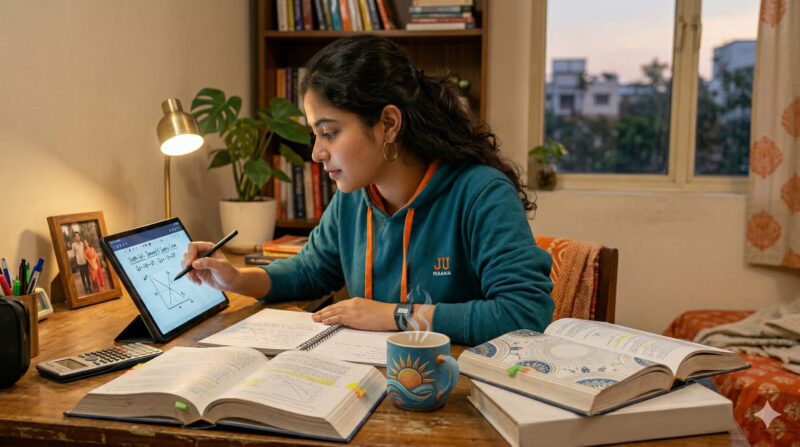
Here’s our honest recommendation matrix based on the most common student situations in India:
- Budget Android phone (Redmi, Realme, Poco): → Microsoft OneNote or Squid. Both are lightweight enough to run well even on 3 GB RAM devices.
- Samsung phone or tablet with S Pen: → Samsung Notes first. It’s already installed and works better with the S Pen than any third-party app.
- JEE / NEET preparation (heavy maths/science notation): → Nebo for its equation handwriting support. Worth the one-time cost.
- Commerce/humanities student who writes a lot of descriptive notes: → Squid (free tier) for the natural writing feel, or Notein for the added PDF annotation of textbooks.
- Student who wants everything free: → OneNote + Google Keep as a combination. OneNote for detailed subject notes, Keep for quick revision points.
- Student who uses both phone and laptop: → OneNote for cross-platform sync via Microsoft account (works on Windows desktop too).
Most mid-range Android styluses (₹500–₹1500 from Amazon India) work well with Squid and OneNote even if they’re not the official brand stylus. You don’t need an Apple Pencil or Samsung S Pen to use a digital handwritten notes app effectively — any capacitive stylus will do for basic writing.
Also take a look at our full guide on the 10 best study apps for students in 2026 where we cover the wider ecosystem of productivity tools that work alongside your notes app.
6. Expert Tips: Getting the Most Out of Your Handwritten Notes App

Just downloading the app is step one. Here’s how to actually use it well:
- Create a subject-first structure before your first class. Don’t start dumping notes into one big notebook. Spend 10 minutes at the start of each semester creating notebooks per subject and sections per unit. This saves hours of searching later.
- Use the “Zoom to Write” feature on smaller phones. Both Squid and OneNote let you write in a zoomed view. Your writing goes in at a smaller size, but you write large — this keeps things neat on small phone screens without a stylus.
- Colour-code by importance, not by subject. Use one colour (say, red) for exam-critical points across all subjects. This way, a quick colour filter shows you everything high-priority across every notebook.
- Export to PDF before exams. Most handwritten notes apps let you export entire notebooks as PDFs. Do this before every exam cycle and save to Google Drive — you’ll always have a backup even if the app acts up.
- Use templates for diagrams. If you draw the same type of diagram frequently (biology cell structure, circuit diagrams, financial statements), create a base template page and duplicate it. Save yourself the repetitive outline-drawing every time.
- Pair your app with spaced repetition. Great notes are useless if you never review them. Check out resources like Scientific American’s guide on effective note-taking for how to combine note-taking with active recall — the most evidence-backed study method available.
7. Common Mistakes Students Make With Digital Handwritten Notes
These are the most common traps — based on real feedback from students who switched to digital note-taking:
- Writing too small on phone screens. It looks neat in the moment but is impossible to read when you zoom back out. Use the zoom-to-write mode or get a tablet.
- Not setting up cloud sync before relying on the app. If your phone crashes or gets lost without sync enabled, all your notes are gone. Set up backup on Day 1, not Day 30.
- Switching apps every month. We’ve all done it — trying every new “better” app and losing hours to migration. Pick one, learn it deeply, stick with it for a semester before evaluating.
- Using a handwritten notes app as a dump, not a system. Writing everything in one big note without structure makes it harder to revise than physical notes. Organise as you go.
- Ignoring the keyboard option. Handwriting is great for diagrams and key points, but for long theory answers, typed notes are faster. The best students use both — hand-write important concepts, type out longer explanations.
- Not testing the app before an important class. Some apps have a learning curve. Don’t use a new handwritten notes app for the first time during a lecture that matters.
If note organisation is a broader issue, our post on creating a solid study setup on a student budget covers how your physical workspace and digital tools should work together.
Educational technology researchers note that the act of organising digital notes — creating folders, colour-coding, linking pages — itself reinforces learning. It forces you to think about where information fits, which is a mild form of active recall. So don’t feel like you’re “wasting time” setting up your notebooks; you’re actually encoding information while you do it.
8. Frequently Asked Questions
Can a digital handwritten notes app replace a physical notebook for exam prep?
For most students, yes — especially with features like search, cloud backup, and PDF export. The key advantage is that digital notes cannot be lost, can be searched in seconds, and can be revised without rewriting the whole page. Many students keep a physical notebook for active writing in class, then transfer important notes digitally for revision.
9. Conclusion: Your Next Step
The right handwritten notes app can change how you study — not because the app is magic, but because it removes friction. Your notes are always with you, always searchable, and never at risk of getting soaked in the rain on the way to class.
Here’s the short version of everything we covered:
- 🏆 Best overall free app: Microsoft OneNote
- ✍️ Best handwriting feel: Squid
- 📱 Best for Samsung users: Samsung Notes
- 🔠 Best ink-to-text conversion: Nebo
- 🧘 Best distraction-free option: INKredible
- 📋 Best Android-first all-rounder: Notein
- ⚡ Best quick-capture supplement: Google Keep
Our honest advice? Start with OneNote today. It’s free, powerful, and takes less than 5 minutes to set up. Once you’ve used it for two weeks and understand what you need more of — that’s when you can explore Squid, Nebo, or Notein to fill the gap.
Don’t spend three hours comparing apps. Spend three minutes downloading OneNote and start writing your first note.
📚 Want More Student Productivity Guides?
Learnox publishes practical, no-fluff guides every week — made for Indian students who want to study smarter without spending more.